Launch a Solana coin with Grok
A step-by-step Gonk walkthrough for Grok: private MCP setup, current SOL costs, spending caps, confirmation and disconnecting.
Published and reviewed 2026-11-16 · Gonk team · 8 minute read
Use Grok to shape a coin idea and call Gonk’s launch tools from a private connection. You choose the wallet permissions and budget, review the real SOL costs, and decide whether to launch. This guide covers Solana mainnet; it is not a devnet faucet or an investment recommendation.
Before you start
You need a Grok account or client with custom remote MCP access and a Gonk account signed in with Google, X or email. Availability and setup can vary by Grok account and organization. Gonk’s agent flow uses its Privy embedded Solana wallet; connecting only an external wallet does not create that private agent session. Read the FAQ before funding.
Gonk provides a ready-to-paste private prompt for Grok. A plain chat that cannot call MCP tools cannot launch a coin simply because you pasted a URL. If the assistant cannot discover the server’s tools, configure a custom MCP connector where your Grok account supports one. Never move the link into a public X reply to make it work.
1. Create your private Gonk connection
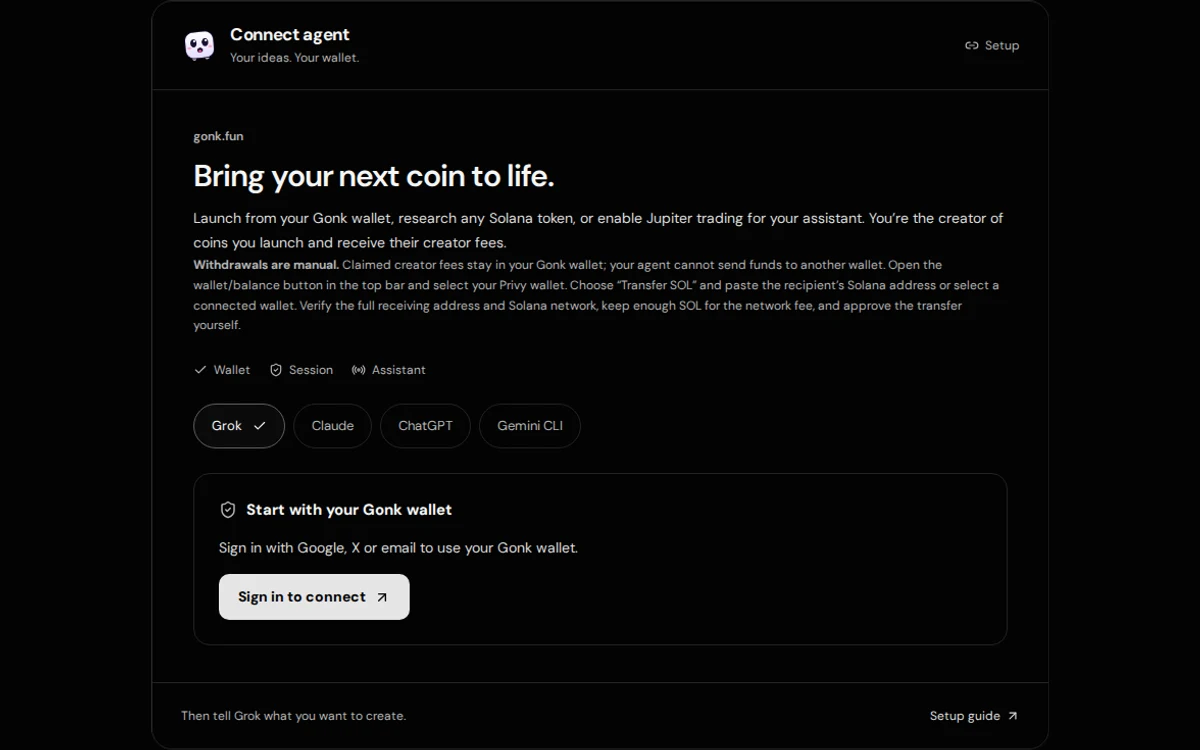
- Open AI agents and sign in. Choose the Privy Solana wallet you intend to use; check the full address before sending SOL.
- Choose Grok. Set the maximum first buy per launch (0.02–100 SOL) and the session spending cap (0.001–1000 SOL). These are authorization limits, not a requirement to spend those amounts. Pick a cap that covers the intended launch and estimated costs.
- Leave Jupiter trading and automatic strategies off unless you specifically want those additional permissions. Press Connect Grok and review the wallet’s signer approval.
- Read the private-link warning. Acknowledge both statements only if you understand them, then choose Reveal private connection.
Understand the permissions before you connect
The maximum first-buy setting is a per-launch limit, and also limits each SOL buy if you opt into trading. The session spending cap is a separate cumulative SOL budget. The backend reserves conservative launch, buy, fee, account and network costs before signing. Proceeds do not refill it; failed or uncertain attempts can keep their reservation. It is a server-enforced budget, not an immutable onchain spending guarantee.
Trading and automated strategies are separate opt-ins. Leave both off for a first launch walkthrough. When enabled, sells can use existing token holdings: the SOL cap does not bound the market value of tokens sold. Each automated plan also needs its own amount, budget, expiry and execution limit.
Your private connection URL is a bearer credential. Anyone who obtains an active link can use its allowed tools. Never put it in a public post, an X mention tagging Grok, a screenshot, a support report or a shared repository. Your AI provider receives the link and tool data when you connect. Read that provider’s data settings as well as Gonk’s privacy information.
A longer connection does not start a background job. For this walkthrough, leave unattended launches off. If you explicitly enable them for another session, choose a maximum number of launch attempts and give your assistant separate instructions about what to launch. Trading and trading strategies are off in that mode.
Approving the delegated signer allows permitted actions without a fresh wallet popup each time. Asking the assistant to confirm in chat is useful, but it is not a second cryptographic approval barrier. Choose 1, 4, 8 or 12 hours for a new connection; 1 hour is the default. Time spent approving reduces the remaining time. Privy blocks new signatures after that deadline; the backend also expires the link and stops new strategy submissions.
2. Connect Grok and verify the wallet
Use Copy prompt on Gonk and paste it only into your private Grok chat. If Grok asks you to configure a connector, open its connectors area, choose a custom connector and use the exact private MCP URL copied from Gonk. Follow the authentication options your client offers; this URL already contains the session secret. Never invent an OAuth client ID, share a private key, or use the public /mcp endpoint as a replacement for the private wallet connection.
Ask Grok to call status first. Verify the returned wallet address matches Gonk, check the network is mainnet, and review session_budget, the expiry and enabled permissions. Stop if the wallet or permissions differ from what you approved. An assistant’s message saying “connected” is not enough if it did not call the tool.
Call status first. Show the connected wallet, session budget and expiry.
Help me draft an original Solana coin. Use SOL as the quote token.
Start with no first buy: dev_buy_sol = 0.
Show the launch_cost result and wait for my explicit confirmation before launch.
This is an example instruction, not a connection URL. Insert no real secret into a public example. If your client lacks remote MCP support, use the website launch form instead of exposing your link elsewhere.
What does it cost?
A private connection is not a free launch. The base wallet funding estimate refreshes daily and includes a safety buffer. For example, with a 0.01 SOL base recommendation and the normal 0.02 SOL Gonk agent fee, plan for about 0.03 SOL with no first buy. Unused buffer stays in your wallet. Check launch_cost for the latest requirement.
An optional first buy adds the chosen SOL amount plus account costs. For example, with a 0.03 SOL launch recommendation and about 0.0045 SOL in extra account costs, a 0.1 SOL first buy brings the recommendation to about 0.1345 SOL. A 0 SOL first buy is supported; you do not have to buy your own coin. Holder rewards and other settings can change the requirement.
Ask the assistant to call launch_cost with your intended dev_buy_sol immediately before deciding. Compare its total_needed_sol, gonk_fee_sol, enough, send_sol and session_budget values with your wallet and chosen cap. If costs exceed the remaining cap, reconnect with a deliberately chosen budget; depositing more SOL alone does not raise that cap.
Gonk coin trades on the curve currently total 1%: 0.25% Raydium, 0.25% Gonk and 0.5% creator fees. Optional Jupiter swaps through Gonk currently carry a 0.50% Gonk referral fee plus applicable route, network and account costs. These are separate from the agent launch fee. Grok or Claude subscription/API charges, if any, are paid to that provider. Check the live quote and fee breakdown rather than treating these figures as permanent.
3. Review the coin and explicitly confirm
Tell Grok your idea, then review the final name, ticker, image, description and curve. SOL is the default pair. The current private MCP launch tool supports SOL pairs only; for another quote token, obtain explicit user approval and use a supported option in the website launch form.
Choose a first-buy amount deliberately. Zero is valid; amounts above the approved per-buy limit require a new connection. A bigger first buy changes allocation and price impact and can lose its full value. It does not guarantee a successful launch or future buyers.
Decide whether to include the optional assistant credit in the description. With signing enabled and an assistant name, Gonk appends “Launched with Grok on gonk.fun”. Set sign to false to omit it. This description credit does not add a separate fee.
Ask for a final summary and a fresh launch_cost result. Confirm only after the wallet, costs, image, pair, curve and first buy are correct. The assistant then calls launch under the existing delegated permissions. The instruction to wait for confirmation is a conversational rule; the actual signing access was granted when you approved the connection.
Check the result rather than trusting a chat reply
A successful response should identify the token mint, transaction and Gonk coin page. Open the transaction on a Solana explorer and check confirmation, creator wallet and mint. If the response is pending or the tool times out, inspect that transaction before trying again. A chart listing is not proof of liquidity, demand, profit or a bot-free launch.
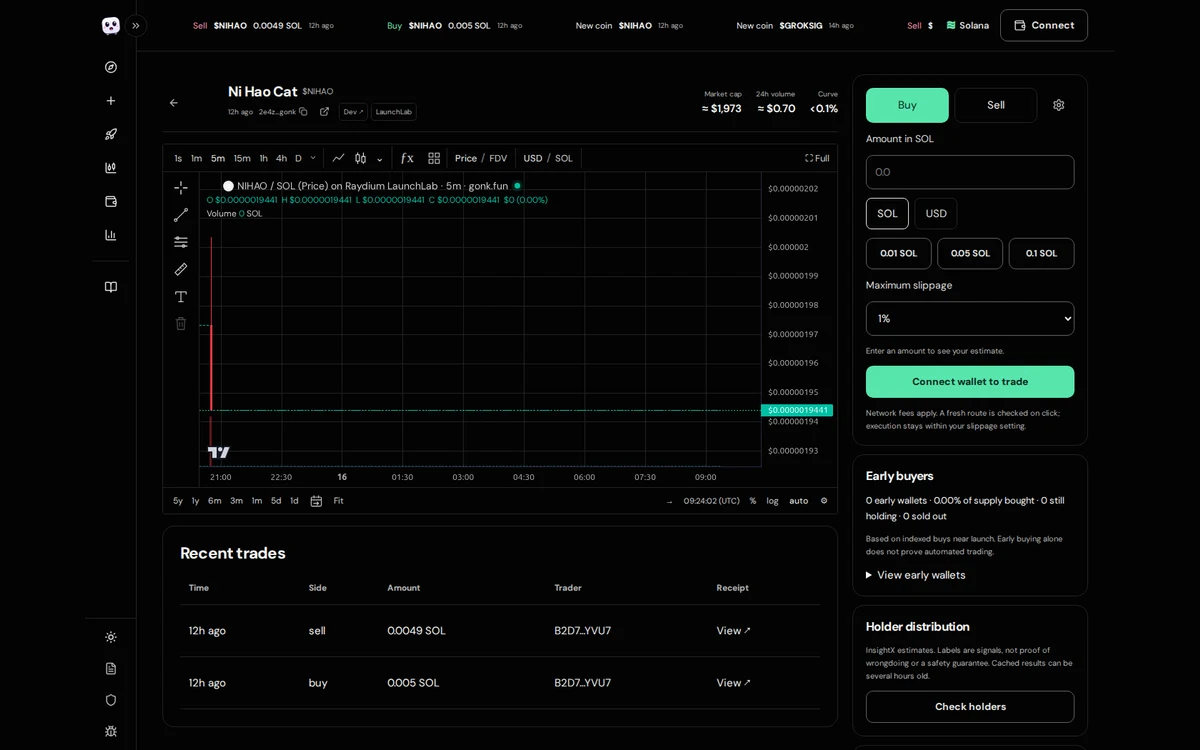
Creating a token is an irreversible mainnet action with real costs. Metadata and token records may be permanent. Use an original image and a name you have permission to use; do not impersonate another project. Keep only funds you can afford to lose.
Disconnect when you finish
- Open gonk.fun/agents using the same signed-in account and select the Privy wallet used for the connection.
- Press Disconnect. Confirm the site reports that the old link is revoked. The backend stops new use of that connection and its automated plans.
- The interface also attempts to remove the Privy signer. If it reports a removal failure, review the wallet’s signer permissions and complete removal; do not treat the assistant’s own confirmation as proof.
- Remove the saved connector from Grok or Claude as well. This clears its saved access, but removing it in the assistant alone is not a substitute for revoking on Gonk.
Expiry removes signing power under the time-bound policy; an old signer entry may still be visible in the wallet. The server also retries a deny-all policy update. Transactions already signed or submitted can still complete, so inspect wallet activity before repeating an action or assuming it was cancelled.
Withdrawals are manual. Open the wallet/balance button on Gonk, select the Privy wallet, choose Transfer SOL, and paste the full recipient Solana address or choose a connected wallet. Verify the network and address, keep enough SOL for fees, and approve the transfer yourself. The agent cannot withdraw funds for you.
If a tool fails
An inactive-link error means the URL expired, was replaced or was disconnected: create a fresh connection. A session-cap error needs a new explicitly approved budget, not repeated attempts. Insufficient SOL requires checking the latest cost and funding the correct wallet. If you see a single-launch test restriction, create a normal connection; development fee waivers do not apply to ordinary users.
If Grok cannot see tools, check the MCP connector configuration and account support. If signing or confirmation is uncertain, inspect the public transaction rather than immediately launching again. Never bypass browser security warnings.
Gonk API and agent guide · OpenAPI specification · Agent resources